Getting Started
Your first Wato workflow — create a team, add memory, submit it for review, approve it, and connect an AI client through MCP.
This guide walks through the first Wato workflow: create a team, add team memory, submit it for review, approve it, and connect an AI client through MCP.
Wato stores team memory as reviewed Markdown pages. Users and agents can draft changes, but those changes do not become trusted team memory until they are submitted for review and approved.
1. Create a team
Teams are the main boundary for memory, MCP access, review workflows, and traces.
In the UI
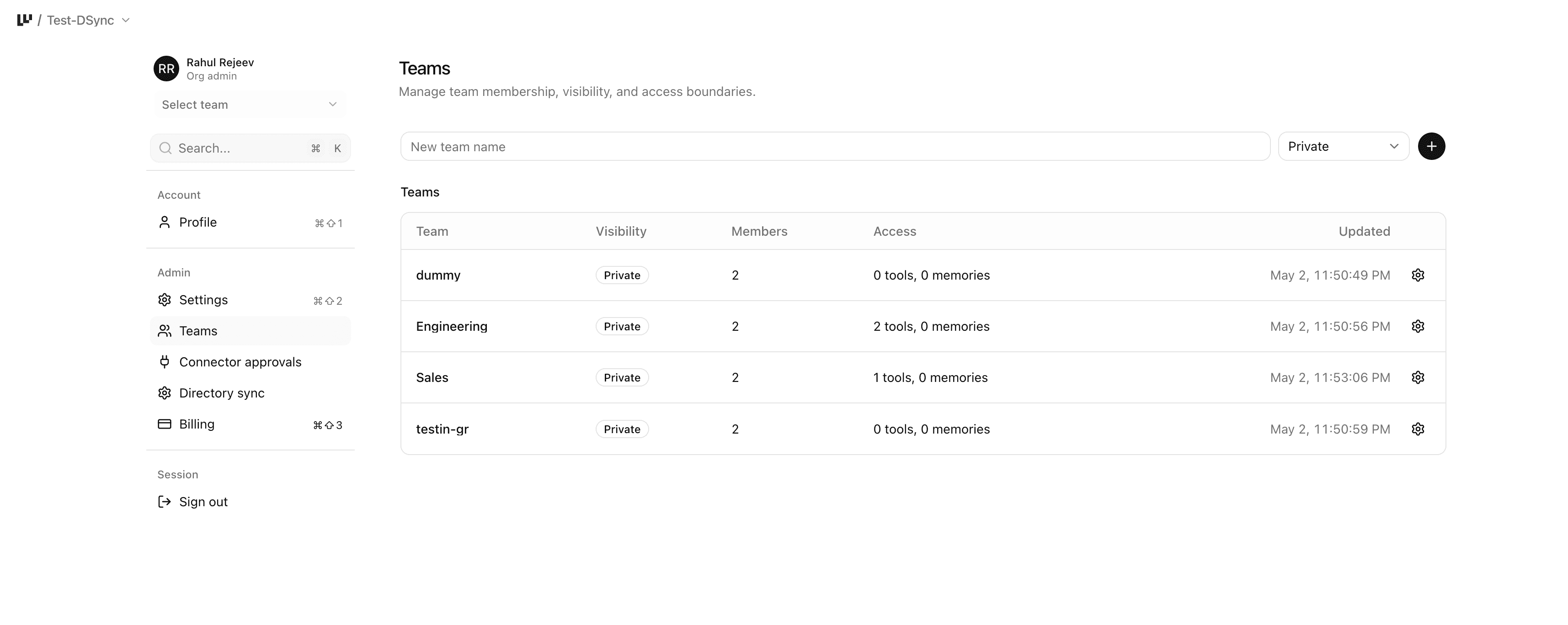
- Go to Admin → Teams.
- Enter a team name.
- Choose a visibility setting:
- Private: only explicit members can access the team.
- Requestable: users can discover the team and request access.
- Public: visible more broadly inside the workspace.
- Click Create team.
After the team is created, Wato provisions a team-scoped memory wiki. The team gets its own memory, review queue, connector permissions, and audit surface.
Via MCP
Team creation is handled in the Wato UI/admin layer, not through the memory MCP tools. MCP tools operate inside an existing team context after the team has been created and the MCP client is connected to that team.
2. Add team memory
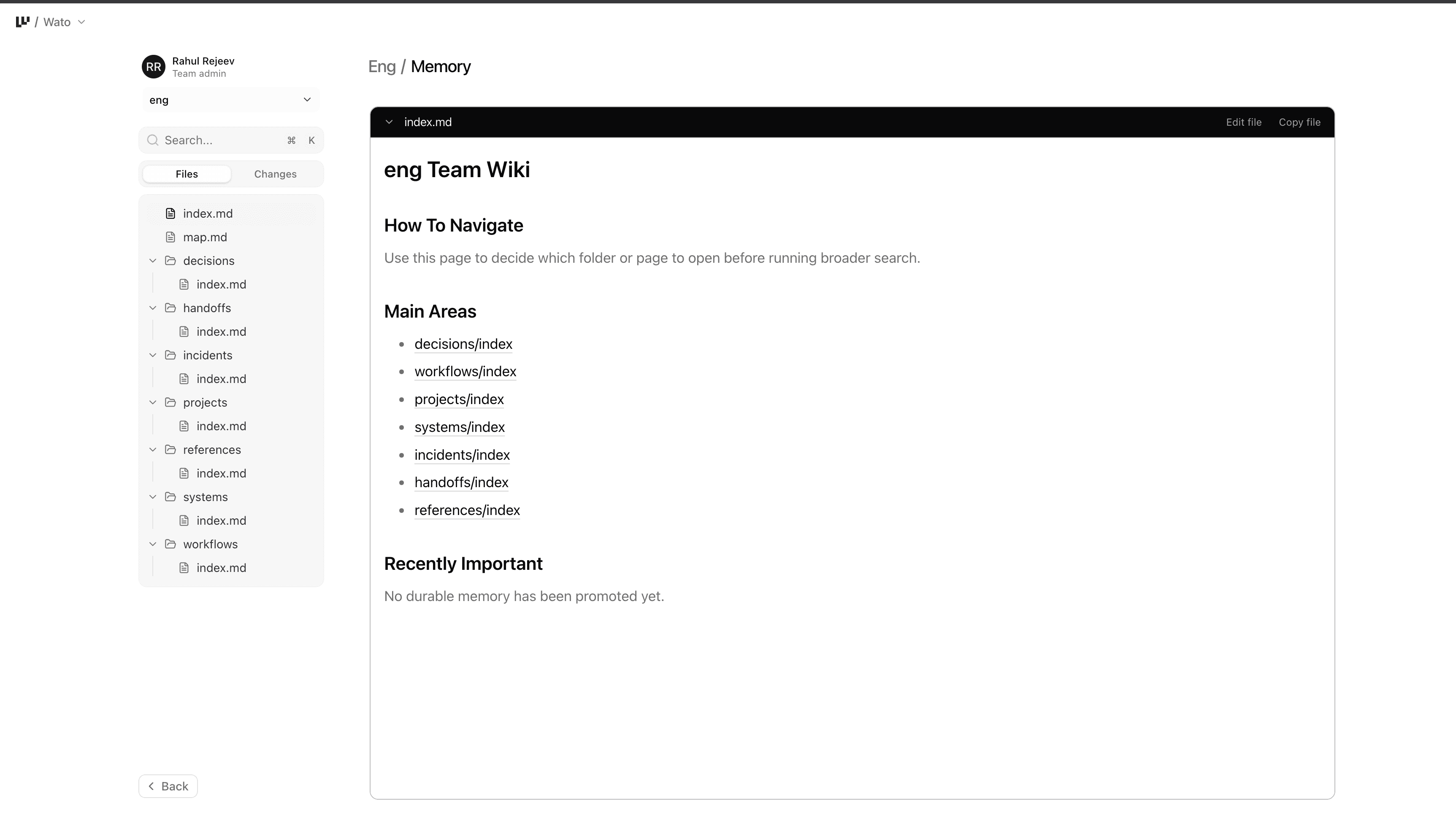
Team memory is stored as Markdown files in the team's memory wiki. You can browse files, read reviewed memory, and create draft changes before submitting them for review.
In the UI
- Open Teams → [Team] → Memory.
- Browse the memory file tree.
- Open the page you want to update, or create/edit a Markdown page.
- Save your changes.
Saved changes are stored as a draft. They are not visible as trusted team memory yet.
Via MCP
Use the team-scoped Wato MCP server from your AI client. The MCP server URL includes the team context, for example:
[mcp_servers.wato-engineering]
url = "https://mesh.watolabs.com/api/mcp"
http_headers = { "x-mesh-team" = "engineering" }
Useful tools for adding memory:
mesh_list_memory_files
mesh_read_memory_file
mesh_patch_memory_file
mesh_write_memory_file
Example:
mesh_write_memory_file({
  "path": "workflows/customer-onboarding.md",
  "content": "# Customer Onboarding\n\nAdd the team memory here."
})
3. Submit memory for review
After you add or edit team memory, Wato saves the change as a draft. Drafts do not become trusted team memory until they are submitted for review.
In the UI
- Go to Teams → [Team] → Memory.
- Make your memory changes.
- Open the draft panel.
- Click Preview diff to review what changed.
- Click Submit for review.
The change is now a memory proposal. Reviewers can inspect the diff before it is merged into trusted team memory.
Via MCP
After an agent writes or edits memory through MCP, submit the current draft for review:
mesh_submit_memory_branch_for_review({
  "title": "Update customer onboarding workflow",
  "summary": "Adds renewal handoff notes and implementation checklist.",
  "message": "Update customer onboarding memory"
})
Use mesh_list_memory_proposals to see pending proposals, and
mesh_get_memory_proposal to inspect a specific proposal and its diff.
4. Approve the proposal
Approving a proposal merges the reviewed draft into trusted team memory. After approval, agents can retrieve and use the updated memory through Wato.
In the UI
- Go to Teams → [Team] → Memory → Review.
- Open the proposal you want to review.
- Check the proposed Markdown changes.
- Review the mergeability status:
- Ready to merge: the proposal can be approved.
- Has conflicts: the author must resolve conflicts before approval.
- Mergeability unknown: refresh or reopen the review before merging.
- Click Merge.
Once merged, the proposal becomes part of the team's reviewed memory.
Via MCP
Agents can submit, list, inspect, refresh, and — when authorized — merge
proposals through MCP. Final approval usually happens in the Wato review UI, but
callers with memory merge access can merge clean proposals with
mesh_merge_memory_proposal. Conflicted proposals do not update reviewed
memory.
5. Connect Wato to your AI client through MCP
Wato exposes team memory and approved tools through MCP. This lets AI clients read memory, write draft memory changes, submit proposals, and call approved team tools through the same governed interface.
Get your connection config
Each MCP connection runs in one team's context, and every client authenticates with OAuth. Open Teams → [Team] → Setup ("Use Wato MCP in your agent") to copy the exact, pre-filled config for your team.
The server endpoint is https://mesh.watolabs.com/api/mcp, scoped to a team
either by a ?team=<slug> query parameter (Claude Code, Cursor, most clients)
or by an x-mesh-team header (Codex).
Step-by-step setup for Claude Code, Codex, Cursor, and other clients lives in Connecting AI Clients.
The key pattern
When working through a Wato MCP server, agents should follow this order:
- Call
wato_get_usage_guide. - Use
mesh_search_toolsto confirm available MCP tools. - Use
wato_search_agent_contextfor rules, skills, plugins, and authorized context. - Search, list, or read reviewed memory with
mesh_search_memory,mesh_list_memory_files, andmesh_read_memory_file. - Draft changes with
mesh_patch_memory_fileormesh_write_memory_file. - Keep drafts current with
mesh_update_memory_branch_from_main. - Submit the draft with
mesh_submit_memory_branch_for_review. - Inspect pending proposals with
mesh_list_memory_proposalsandmesh_get_memory_proposal. - Inspect history with
mesh_list_memory_changesandmesh_get_memory_change. - Merge through the Wato review UI, or through
mesh_merge_memory_proposalwhen MCP merge access is available and the proposal is clean.
The full tool catalog — names, descriptions, and when to use each — lives in the Reference.